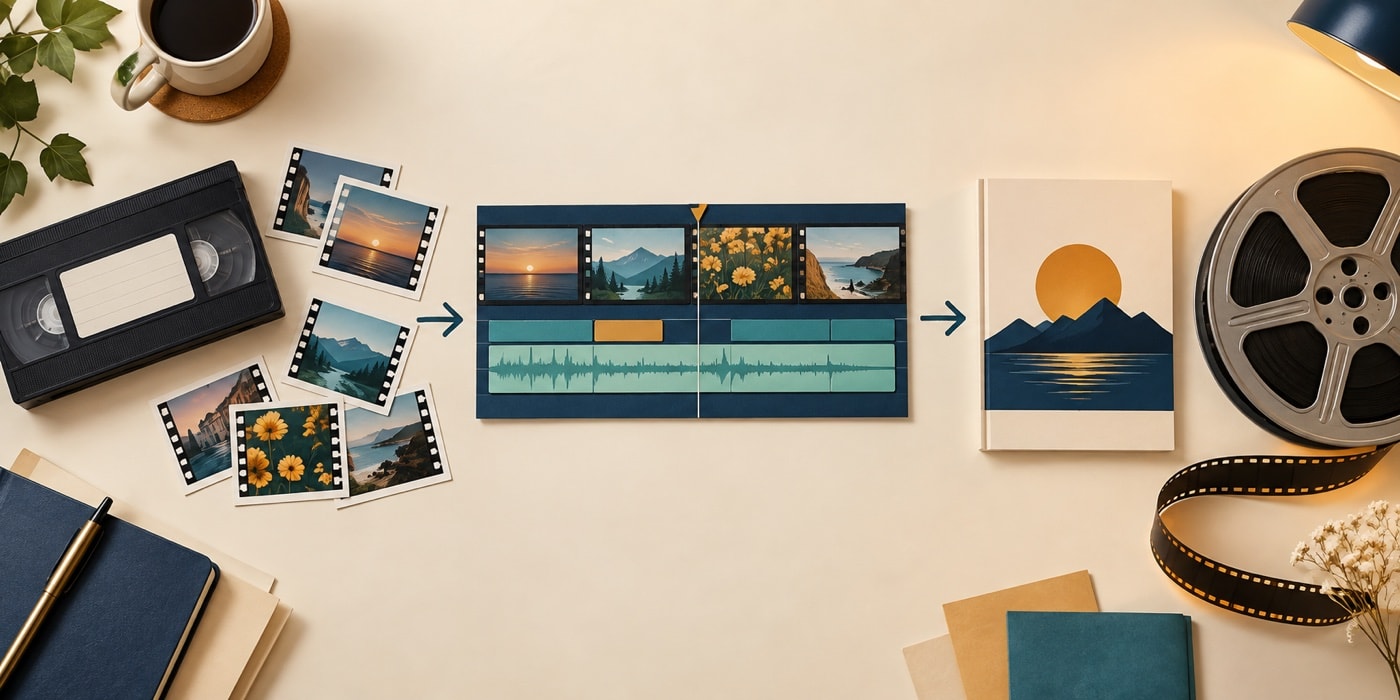
Choose a story and reduce the set
Define the subject in one sentence. Then remove near-duplicates, accidental frames and pictures that need a long explanation to belong. Keep a wider view to establish the place, medium views to show activity and a few close details. A shorter set with clear variation is easier to follow than every picture from an event.
Build an understandable order
Chronology works well for a journey, performance or family occasion. A thematic order may suit a portrait of a place or person. Start with an image that establishes context and end with one that feels conclusive. Place related pictures together, then preview the sequence without transitions or music.
Set timing by information
Give a simple picture enough time to be understood and a detailed group photograph longer. If narration names people or places, allow the line to finish before moving on. Regular durations can create rhythm, but important images may deserve a deliberate hold.
Use transitions sparingly. A consistent dissolve can signal movement through time; direct cuts can add energy. Avoid choosing a new transition for every photograph. The transition guide explains how duration changes the result.
Add titles and sound after the picture sequence
An opening title can provide event, place or year. Short captions should add context rather than describe the visible image. Music may connect groups of pictures, while narration can preserve names and memories. Keep speech clear and allow quiet sections where the photographs can stand alone.
Review the complete sequence
- Check for repeated compositions.
- Confirm that every picture is correctly oriented.
- Allow captions enough reading time.
- Watch for abrupt changes in image shape.
- Listen for smooth music and narration boundaries.
- Create a short finished test before the complete movie.
Use the independent titles guide for opening cards and captions, and the music guide for a restrained soundtrack.